
How to Add Subtitles to Video
Step-by-step guide to adding subtitles to any video. Transcribe with Calybro, export SRT or VTT, then upload to YouTube, Vimeo, or your editor. Fast, accurate, and free to try.
How to Add Subtitles to Video
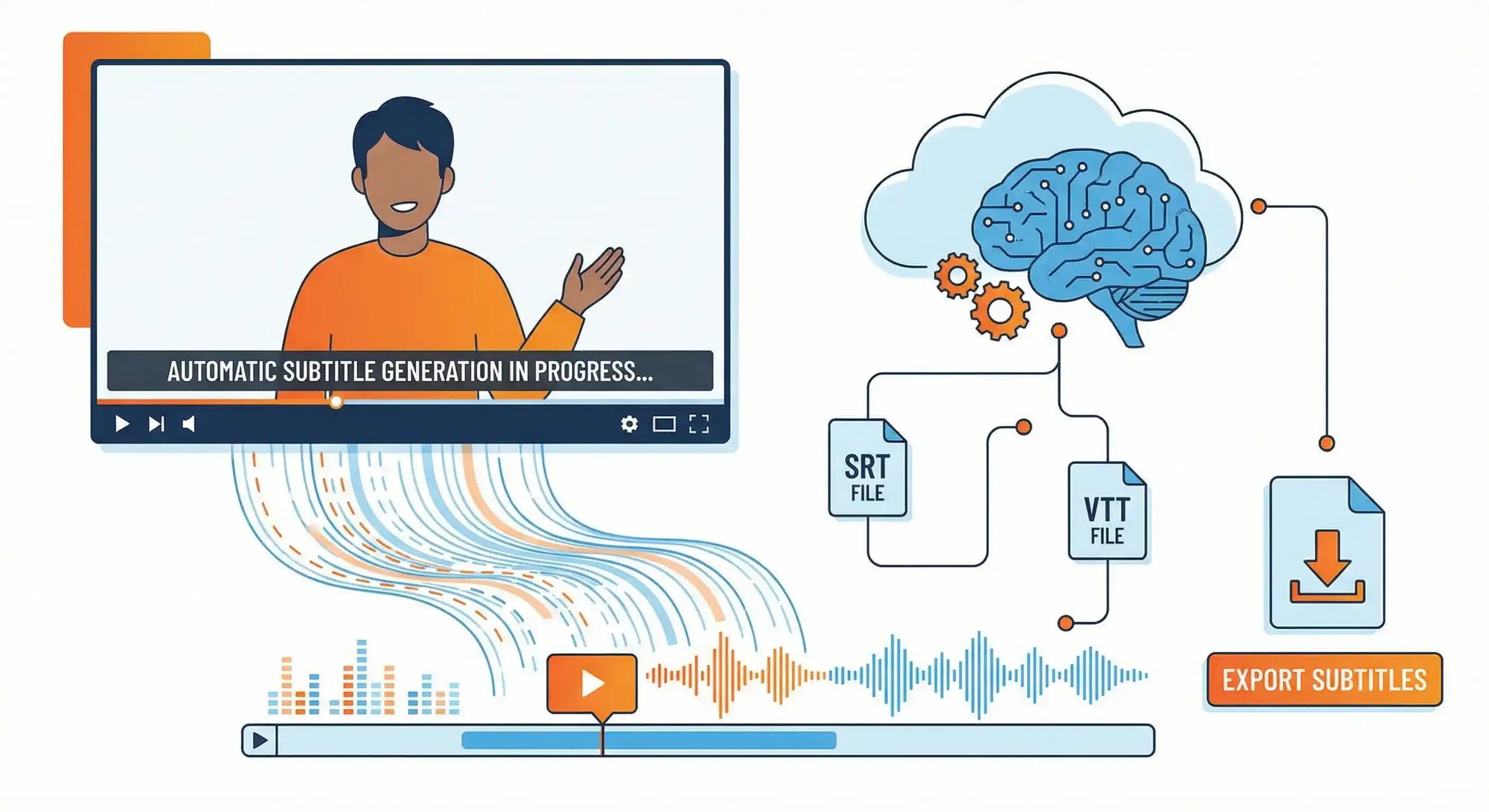
You add subtitles by turning the spoken audio into text, synced to the timeline, then attaching that file to your video. No need to type everything out. Use a transcription tool to get a subtitle file (SRT or VTT), then upload it to YouTube, Vimeo, or your editing software.
Here’s how to do it with Calybro: transcribe your video, export SRT or VTT, then add the file to your platform.
Why add subtitles?
Accessibility
Subtitles let deaf and hard-of-hearing viewers follow along. They also help in noisy environments, on mute, or when someone prefers reading. In some regions, subtitles are required for public content.
SEO and reach
YouTube and other platforms use subtitle text to index video. Subtitled videos can rank better and show up in search. Viewers often watch longer when captions are available.
Less rework
Once you have an SRT or VTT file, you can reuse it on multiple platforms or translate it instead of re-typing.
Step 1: Get a transcript and subtitle file
You need a time-coded transcript. Calybro does this from a file or a link.
- Go to Calybro's website and sign up (free plan: 5 hours per month, no card).
- Upload your video file (MP4, MOV, AVI, etc.) or paste a URL (YouTube, Vimeo, TikTok, Instagram).
- Start the transcription. Set the language if it’s not English; you can set speaker count for interviews.
- When it's done, open the transcript and choose Export → SRT or VTT. Download the file.
SRT works everywhere (YouTube, Vimeo, most editors). VTT is common for web players. Calybro gives you both.
Step 2: Add the subtitle file to your video
Where you add the file depends on where the video lives.
YouTube
- Open YouTube Studio and select your video.
- In the left menu, click Subtitles.
- Click Add language and pick the subtitle language.
- Click Add under that language → Upload file.
- Choose With timing and upload your SRT (or VTT).
- YouTube will sync the file. Review and publish.
Vimeo
- Open the video in Vimeo and go to Settings → Distribution → Subtitles.
- Upload your SRT or VTT file and set the language.
Editing software (DaVinci Resolve, Premiere, etc.)
Import the SRT or VTT as a subtitle/caption track. Each app has a slightly different path (e.g. File → Import or a captions panel). The file is just text with timestamps; the editor will place it on the timeline.
Other platforms
Most hosts (Wistia, SproutVideo, etc.) have a “subtitles” or “captions” section where you upload an SRT or VTT. Check their help docs for the exact step.
Step 3: Check timing and wording
Play the video with subtitles on. If a line is early or late, fix it in the transcript in Calybro and export again, or tweak the SRT in a text editor (each block has a start and end time). Fix any misheard words in Calybro’s editor before you export; that way the subtitle file is correct everywhere.
Tips for better subtitles
- Clear audio
Good speech and less background noise mean fewer caption errors. - Set the right language
In Calybro, picking the video language improves accuracy. - Use custom vocabulary
Add names, brands, or technical terms in Calybro so they appear correctly in the subtitles. - One sentence per line
Most tools (including Calybro) break captions into short lines. If you edit the SRT by hand, keep lines readable (about 42 characters or two lines per cue is a common guideline).
If you don’t want to use software
You can type captions manually in YouTube’s subtitle editor or in your editing app. That works for very short clips but is slow for long videos. A transcription tool like Calybro does the heavy lifting; you only correct and export.
Related guides
- How to transcribe a video file to text — Get the transcript and subtitle file from any video
- How to transcribe a YouTube video — Use a link instead of uploading
- Generate subtitles for any video — Use case and formats (SRT, VTT)
Summary
- Transcribe the video in Calybro (upload file or paste URL).
- Export SRT or VTT from the transcript.
- Upload that file in YouTube Studio, Vimeo, or your editor.
- Review timing and wording, then publish.
Ready to add subtitles? Start with Calybro’s free plan: 5 hours of transcription per month, SRT and VTT export included. Upload a video or paste a YouTube link and you’ll have a subtitle file in minutes.